Give Claude a folder: your first real task
By Stephen Kearney
Everyone has the folder. Mine is called “to sort” and it has been on my desktop since about March. It is where things go when I don’t have time to decide where they should go, which means it is now roughly four hundred files deep and I have stopped looking at it.
That folder is the best possible place to start with Cowork, for one reason: you genuinely do not care what happens to it.
This is the second post in a series on getting actual work out of Claude. The first one covered the difference between chat and Cowork, which comes down to whether a change lands on your file or on a copy. This one is the practical follow-on. Connect a folder, run one real job, and see what it did.
Fifteen minutes, start to finish.
Uploading is not the same as connecting
You can drag files into Claude. Most people do, and it works fine for a one-off question about one document.
It falls apart the moment there is more than one file, or more than one round of changes. You upload, it responds, you download, you file it, and next week you do the whole thing again because the session is gone and so is everything it knew. Six files in, you are spending more time moving files than getting answers about them.
Connecting a folder skips all of that. Claude reads what is in there, works on it in place, and writes the results back where they belong. No download step. No re-upload. Nothing sitting in your Downloads folder wondering whether it is the current version.
The other thing you get is scope. Uploading means deciding up front which files matter. Connecting means Claude can go and look, which is exactly what you want when the honest answer to “which files matter” is “I’m not sure, that’s rather the point”.
Connecting the folder
You need the desktop app for this. Cowork runs in a browser too, but local file access needs the app open on the machine that holds the files.
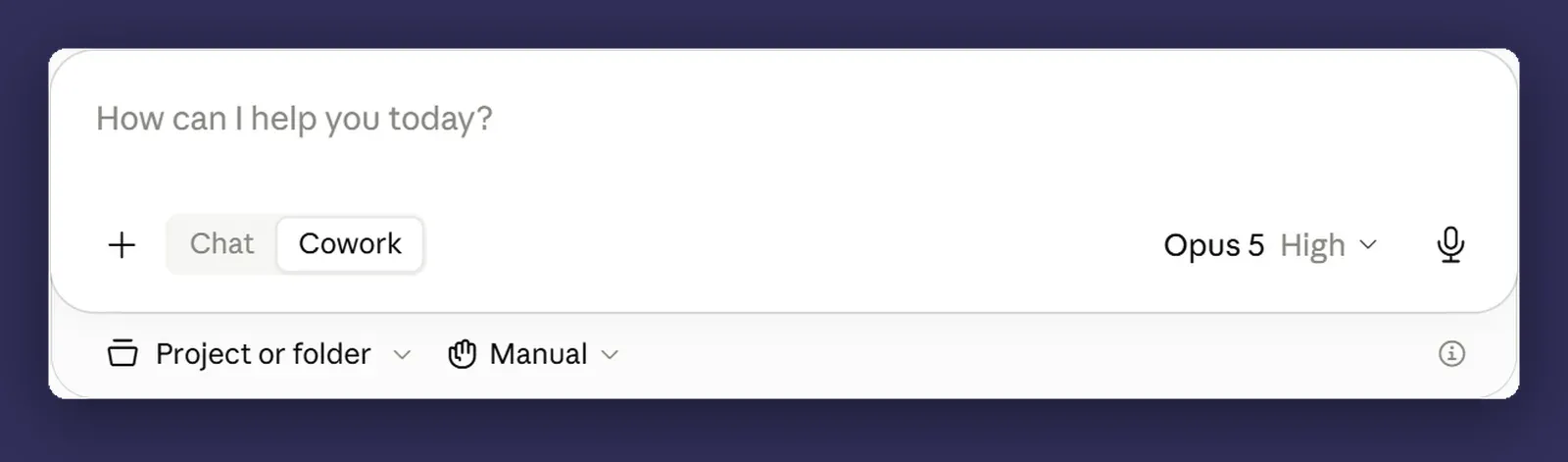
In the composer, under the message box, there is a control for the project or folder. Click it, choose a folder, and point it at something.
Then you get a permission prompt, and this is the one part of the process worth slowing down for.
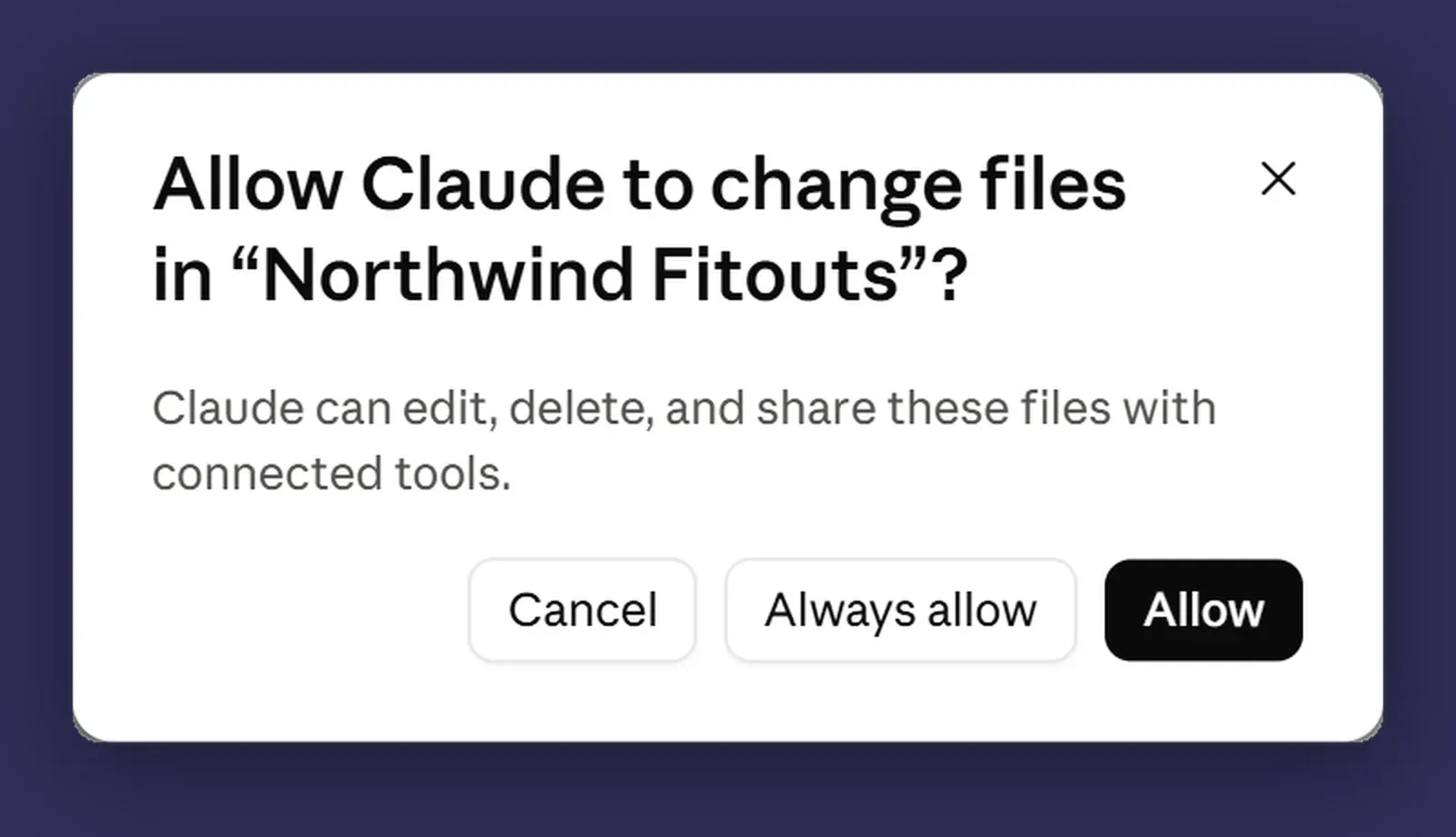
Read what it actually says, because it is doing more than it looks like it is doing. Claude can “edit, delete, and share these files with connected tools”. Edit you expected. Delete you may not have. And sharing with connected tools means the folder is now reachable by whatever else you have plugged in, which is a wider grant than “Claude can look at my folder”.
Then notice the middle button. Allow covers this request. Always allow makes it permanent, and that button is quietly the most consequential control in the whole setup, because it decides how often you are ever asked again. Post three is about the setting it writes to.
Where the work actually happens
This is worth getting straight before you point Claude at anything sensitive, because it is a setting rather than a fact about the product.
In Settings there is a toggle called Run new tasks in the cloud, described there as starting new Cowork tasks “in the cloud instead of on this computer”. Mine is on. With it on, the task runs on Anthropic’s infrastructure, and the approval prompt you meet later in a session says so in as many words: “Because this task runs in the cloud, files Claude uses leave your device.”
So the honest answer to “do my files leave my machine” is that it depends on that toggle, and you should go and look at yours rather than assume either way. One thing that will not tell you is the activity panel, which labels its steps “Reading files on your computer” regardless. The setting is the answer; the panel is not.
For a folder of holiday photos and old invoices, none of this matters much. For a folder of client contracts it is a decision to make deliberately rather than at 4:40 on a Friday. More on that in the next post.
The first task: look, don’t touch
The instinct is to immediately ask it to fix everything. Resist that for one round.
Ask it to tell you what is in there first:
Have a look through this folder and tell me what's in it.
Group things by what they are and roughly when they're from.
Don't change or move anything yet.
Two things come out of this. You find out whether it can actually read the file types you have got, which is worth knowing before it starts moving things. And you get a description of your own folder that is frequently more accurate than your memory of it. Mine turned up a set of 2023 invoices I had assumed were somewhere else entirely.
It also gives you a sense of how it talks about your work, which matters later when you are writing briefs for bigger jobs.
While it runs, open the activity panel.
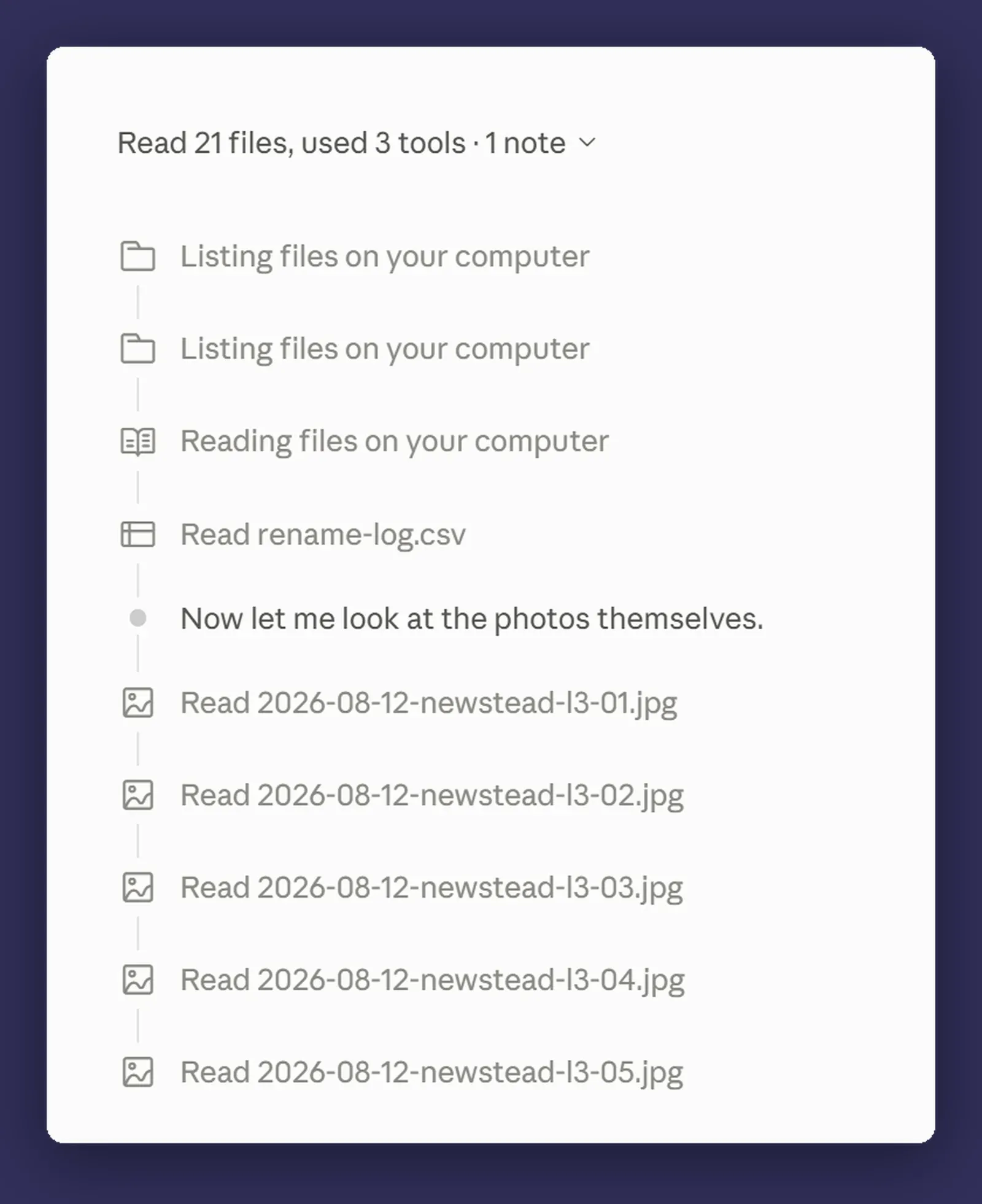
This is the panel at its most readable: one row per file, the file named, in the order it opened them. You can see it list the folder, read the log file it found, decide out loud to look at the photos themselves, and then work through them. Remember what this looks like, because the next job does not look like this at all.
The second task: now let it touch
Once you can see it has understood the folder, give it the actual job.
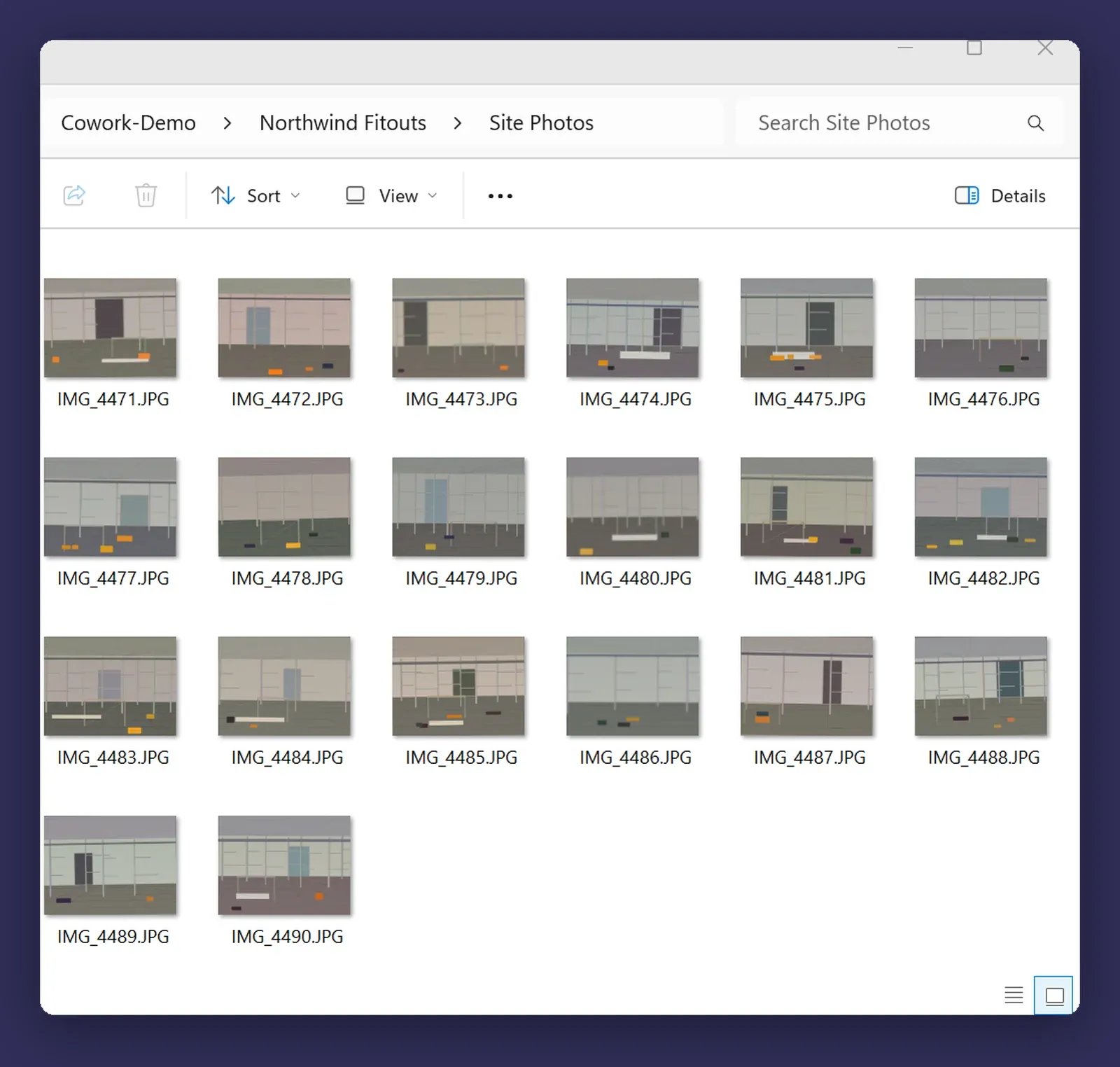
For Northwind Fitouts, the fictional commercial fitout firm I am using throughout this series, the standing example is a folder of site photos straight off a phone:
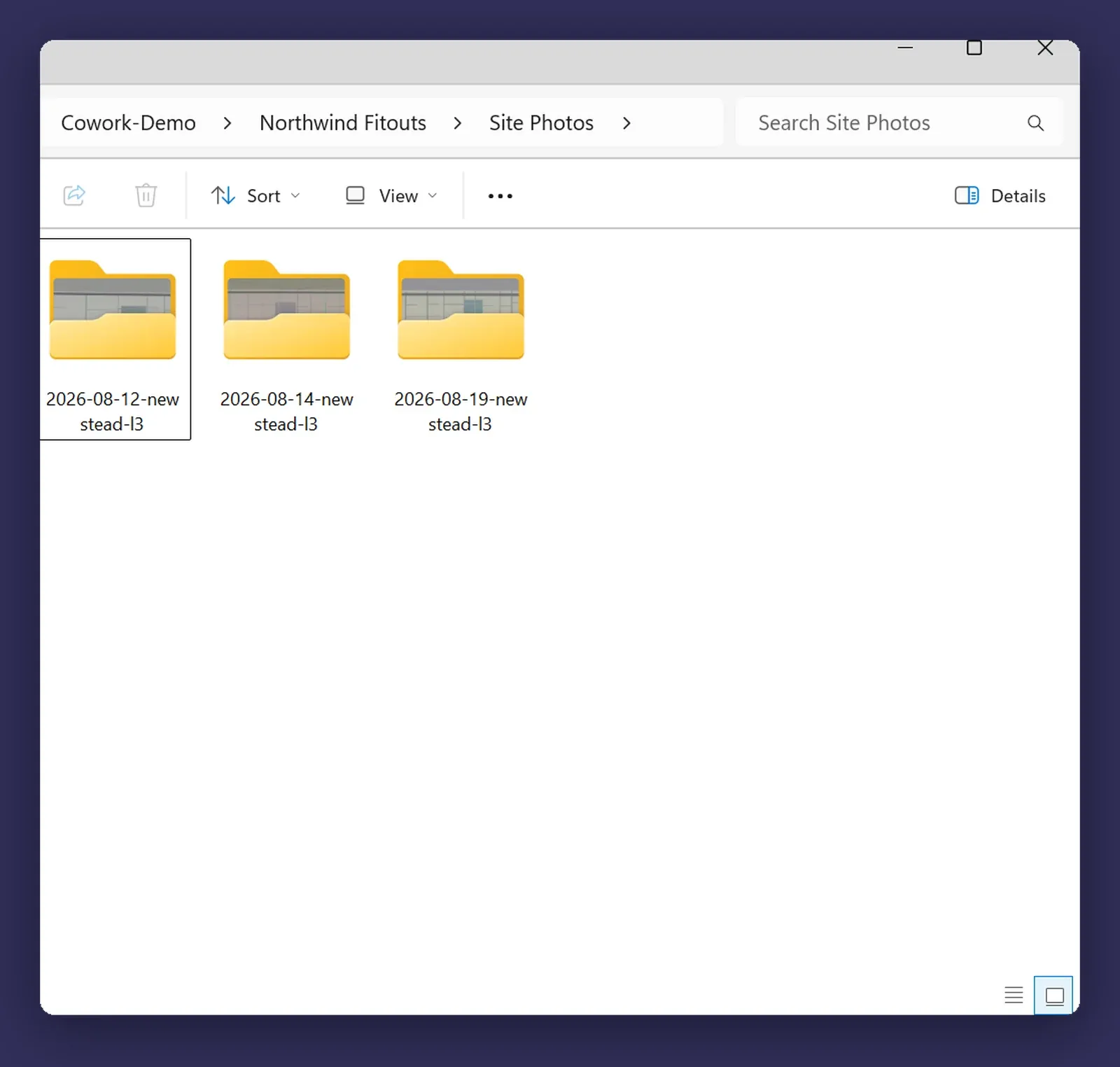
Sort these photos into subfolders, one per site visit date, using the
date the photo was taken rather than the file date. Name each folder
YYYY-MM-DD-newstead-l3.

Inside each, rename the photos YYYY-MM-DD-newstead-l3-NN.jpg, numbered
in the order they were taken.

Leave anything that isn't a photo where it is, and tell me what you skipped.
That last clause earns its place. “Tell me what you skipped” turns a silent job into a reported one, and the things it skipped are usually the things worth looking at.
Read what it did, not what it said
When it finishes it will tell you what it did. The activity panel shows you what it actually did, which is not always the same thing.
Open it after the photo sort and it looks nothing like the one from the first task.
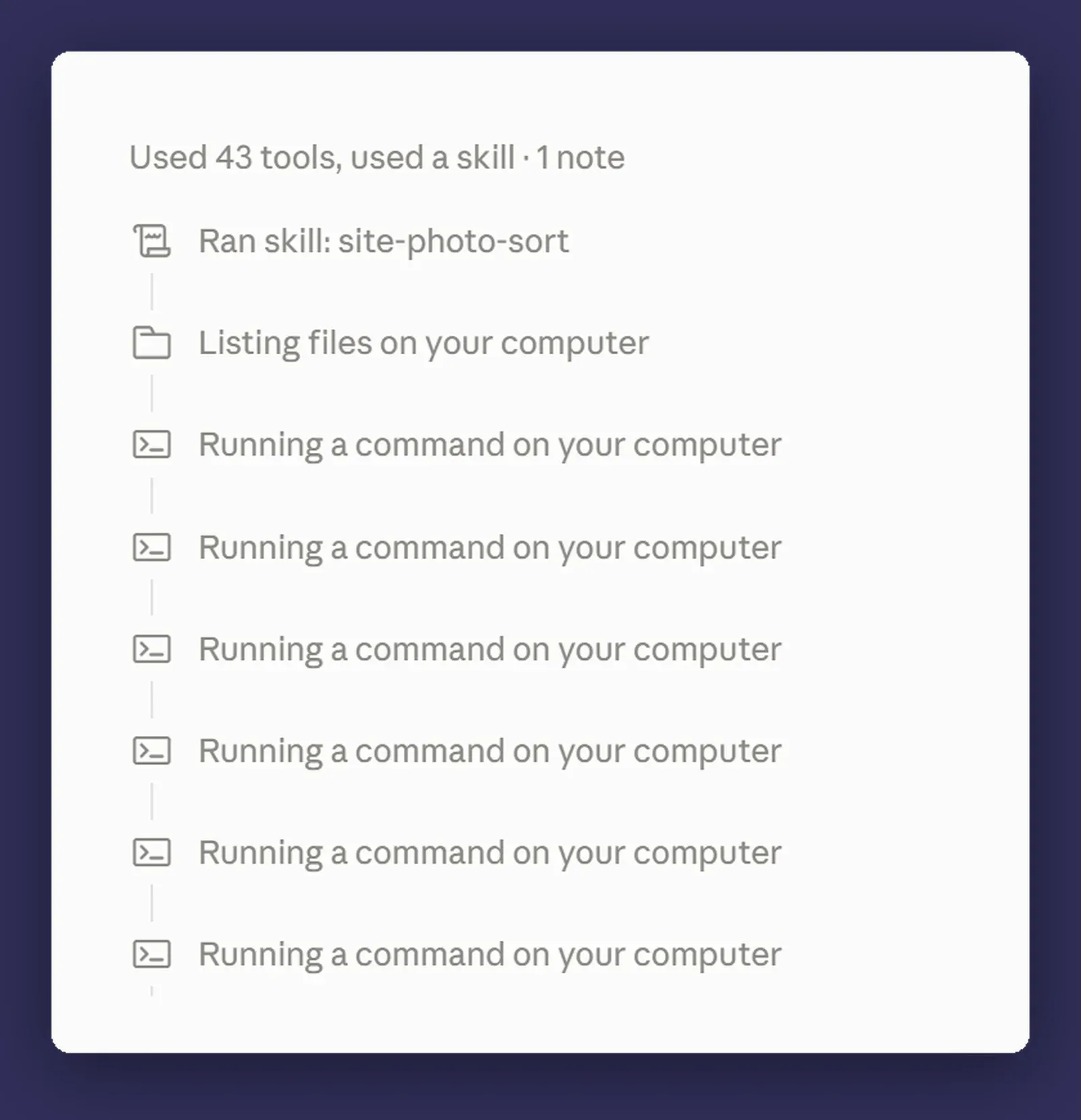
Same folder, same session, a job that touched more files than the first one, and the list has gone quiet. It named the skill it used, it listed the folder, and then everything else collapsed into “Running a command on your computer” over and over.
Nothing has gone wrong here. It decided the job was better done by writing a small program and running it, which for two hundred photos it is, and that is one row per command rather than one row per file. The trade is that the panel stops being a record of your files and becomes a record of its own steps. To find out what any of those commands did, you have to open one.
So the first thing to read in the panel is not the rows. It is which of these two shapes you are looking at. Named files means you can check its work by scanning. Repeated commands means you cannot, and you need to go and look at the folder instead.
Get in the habit early. Open the panel, work out which shape it is, and check what came out against what you expected. On a photo sort it takes ten seconds. On anything that matters it is the difference between trusting the tool and hoping.
The other habit worth forming on day one: open a couple of the files. “Claude said it saved it” and “the file is correct” are two different claims, and only one of them is checkable.
Two things to ask your admin about
Read-only folders. If your organisation is on Team or Enterprise, an admin can set folders that Claude can read but never write to. For anything sensitive that you still want it reasoning over, this is the setting you want, and it is worth asking for by name rather than hoping it is on.
Folder instructions. You can leave a note that travels with a folder, so anything Claude does in there follows the same rules without you retyping them. “Australian date formats, never rename the originals, put outputs in a subfolder called Generated” is a reasonable starting set. There is a whole post on instructions later in the series, but folder-level is the one to set first because it is the narrowest and hardest to get wrong.
Where it bites
The desktop app has to be open. Cowork sessions can only reach your folders while the app is running on that machine. Close the laptop and anything depending on local files stops. This catches people out most often with scheduled work, which is post ten’s problem.
Your files may leave your device. Worth saying twice, because the permission prompt is easy to click through and the answer lives in a toggle you have probably never opened. If the contents of a folder would be a problem in someone else’s data centre, check Run new tasks in the cloud before you connect it, and if you are not sure, that folder is not your starting point.
Do not connect your whole OneDrive on day one. I know why it is tempting. It is also how you end up with Claude helpfully reorganising seven years of files you had a system for, even if it was a bad one. Start with one folder that has a clear edge around it.
Have a backup. The folder grant you just gave includes deleting and overwriting, and Always allow makes it stick. Version history in SharePoint or OneDrive costs nothing and is the single best thing to have switched on before any of this. Your first folder should be one where the worst case is a shrug.
Next
Post three: approval modes, and deciding how much rope to give it on purpose rather than by accident. There are three settings and the wrong one is one click from the right one.
Before then, pick the least important messy folder you own and give it fifteen minutes. If it goes badly, you have lost fifteen minutes on a folder you were ignoring anyway. And if you would rather talk through what is safe to point it at before you connect anything, that is a conversation, not a pitch.