Scheduled tasks: the Monday report that writes itself
By Stephen Kearney
The report you produce every Monday morning is a scheduled task wearing a person costume.
Same inputs, same format, same forty minutes, every week, done by someone whose time is worth considerably more than forty minutes of copying figures between systems. It survives because nobody has ever sat down and asked what it actually is, and because the person doing it has stopped noticing.
This is the tenth post in a series on getting actual work out of Claude. Post one has the setup, and post nine covers connectors, which most scheduled tasks depend on. Scheduled tasks are in Cowork on every paid plan. The Scheduled page started on the desktop and has reached the web and the phone in beta, on Enterprise only once an owner has enabled it.
Setting one up
Two ways, and both start in the same place. Click Scheduled in the left sidebar, then New task in the top right, and pick one.
Create with Claude opens a task already primed to build the schedule for you. It asks a few questions, usually as multiple choice, then reads back the name it has chosen, the cadence it will run on and what the task actually does, and waits for you to click Schedule before it saves anything. That is the easier route the first time.
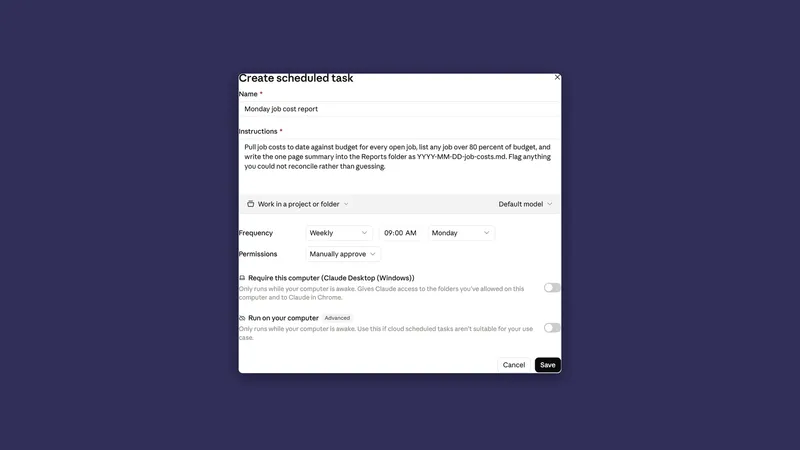
Set up manually gives you the form.
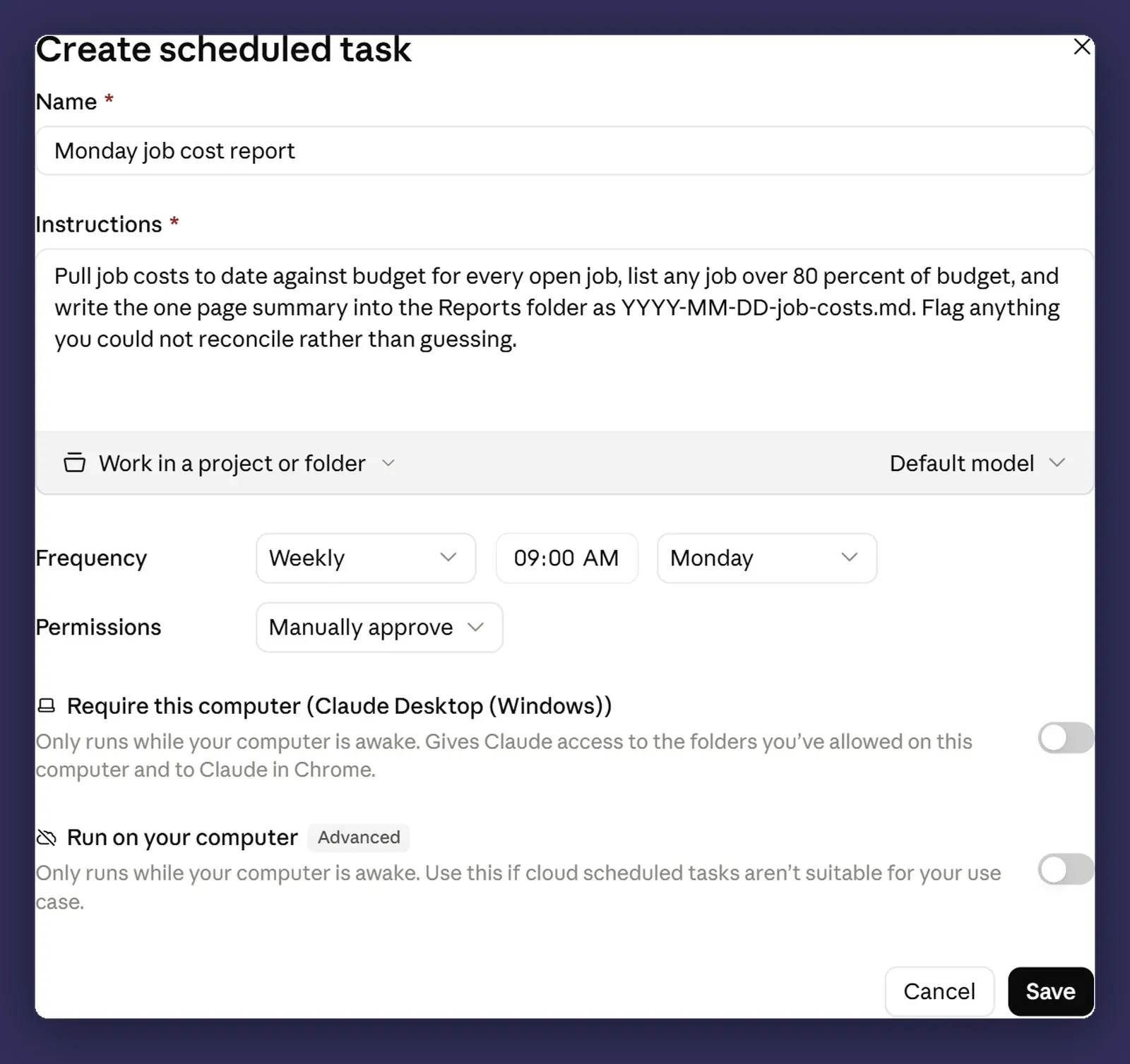
The fields are worth a line each.
Task name. You will have several. Name them for what they produce, not what they do. “Monday pipeline summary” beats “weekly task 2”.
Prompt. The important one. Covered below, because writing for something unattended is a different job. A scheduled task has the same reach as any other Cowork task, so your connectors, your skills and your installed plugins are all available to it.
Approval mode. Post three’s territory, and it matters more here than anywhere, because there is nobody to approve. The three modes still apply, and the difference between them is sharper when you are not watching. On Automatically approve, Claude screens each action for safety before it runs. On Skip all approvals, nothing checks it. Manually approve is the safest setting everywhere else in the product and the least useful one here, because the approval it stops to ask for has nobody to give it.
Frequency. Hourly, daily, weekdays, weekly, or manually, which means it sits there and only runs when you tell it to. Weekdays is the underrated one for anything business-hours shaped.
Model. Optional. Match it to the work. A summarising task does not need the heaviest model, and the difference shows up in your usage.
Folder. Optional, and the field with the most attached to it. That is the next section.
Where they run, and the catch
Scheduled tasks run in the cloud. Your machine can be asleep, shut, or in a bag at the airport, and the task still fires on its cadence. Anthropic’s wording is that scheduled tasks “no longer need your computer to be awake”, and the “no longer” is doing real work in that sentence. It changed after this post was drafted. The older behaviour, where a run that came due on a sleeping machine was skipped and then fired when you next opened the app, is gone as the default. What is left of it is two switches at the bottom of the form above, Require this computer and Run on your computer, and both carry the same warning underneath: only runs while your computer is awake.
The catch did not disappear with it. It moved. The run happens; reaching a folder on your computer is the part that does not. A cloud session reads and writes files in a folder you have connected only while the Claude Desktop app is open on that machine. Close the laptop and the session keeps going, it simply cannot see your files, so a 6am Monday task pointed at a folder on your desk produces a run that happened and a report with the local half missing.
Anthropic’s note on the scheduled tasks page is blunter than that: a scheduled task works with your connectors and with the files saved to your Claude account. If you do point one at a folder on your machine, the desktop app stops you first, in language worth reading twice.
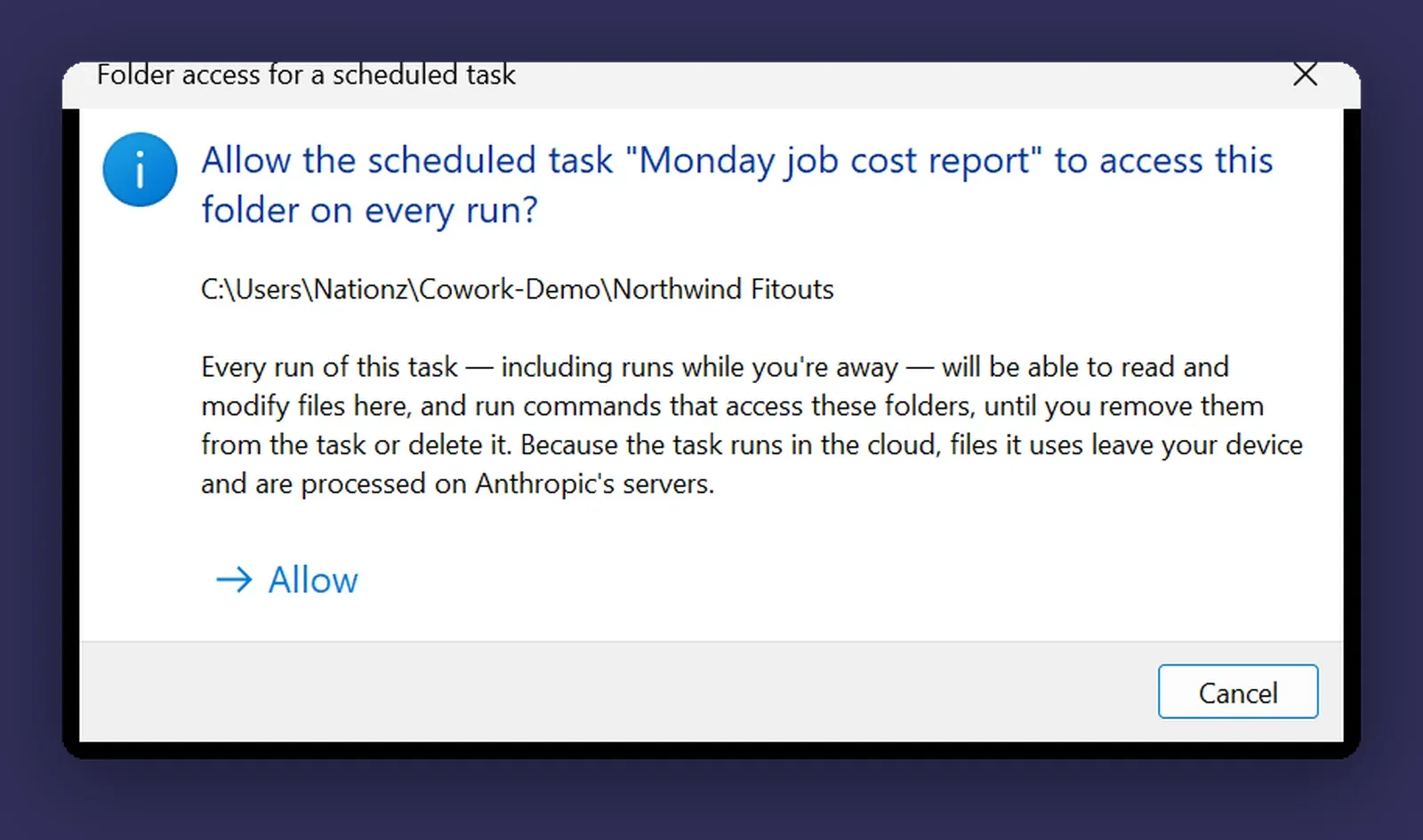
This is the constraint that reshapes most people’s first plan. The obvious first scheduled task is “summarise the folder on my computer every Monday”, and that is the one shape that does not survive being unattended. Work out where your data actually lives before you design the task, because the answer decides whether the task is possible at all. In a connected system or in the files on your Claude account, you are fine. In a folder on your laptop, you have scheduled a job that needs you awake.
Writing a prompt for something with nobody watching
An interactive brief can be a bit loose, because you are there. You see it go wrong at step three and you say so.
An unattended prompt has to work with nobody to ask. That changes what a good one looks like.
Say what to do when something is missing. Not if. When. Data arrives late, a system is down, a folder is empty. “If there are no new invoices, say so and stop” is a line that turns a confusing empty report into a clear one.
Ask for the working, not just the answer. “List the job numbers you included” costs nothing and means you can check a suspicious result without rerunning it.
Bound it. “Last seven days” not “recently”. Unattended tasks run in a context where nobody is around to notice that “recently” quietly became four months.
Have it flag rather than decide. Anything ambiguous should end up in a list at the bottom, not resolved silently by a machine at 6am.
Here is a real one:
Every Monday at 7am.

Pull the last seven days of invoices from Xero and the last seven
days of quotes from the Northwind Fitouts SharePoint site.

Write a one-page summary: total quoted, total invoiced, anything
quoted more than 14 days ago with no invoice, and anything invoiced
without a matching quote.

List the job numbers behind each figure so I can check them.

If either system returns nothing, say which one and stop rather than
reporting zero.

Save as northwind-pipeline-YYYY-MM-DD.docx in Reports > Weekly on
the same SharePoint site. Don't send anything to anyone.
That last line is deliberate and I would put it in most of them.
Notice what that prompt does not touch. Every source in it is a connected system, and so is the place the report gets saved, which is what makes it a job that can run while you are asleep.
The Scheduled sidebar
Everything lives in one place: what is coming up, what has run, and what happened. Click Scheduled in the left sidebar, on any of the three surfaces, and from there you can open a task to edit its instructions or its cadence, pause it, resume it, delete it, or run it on demand without waiting for the schedule.
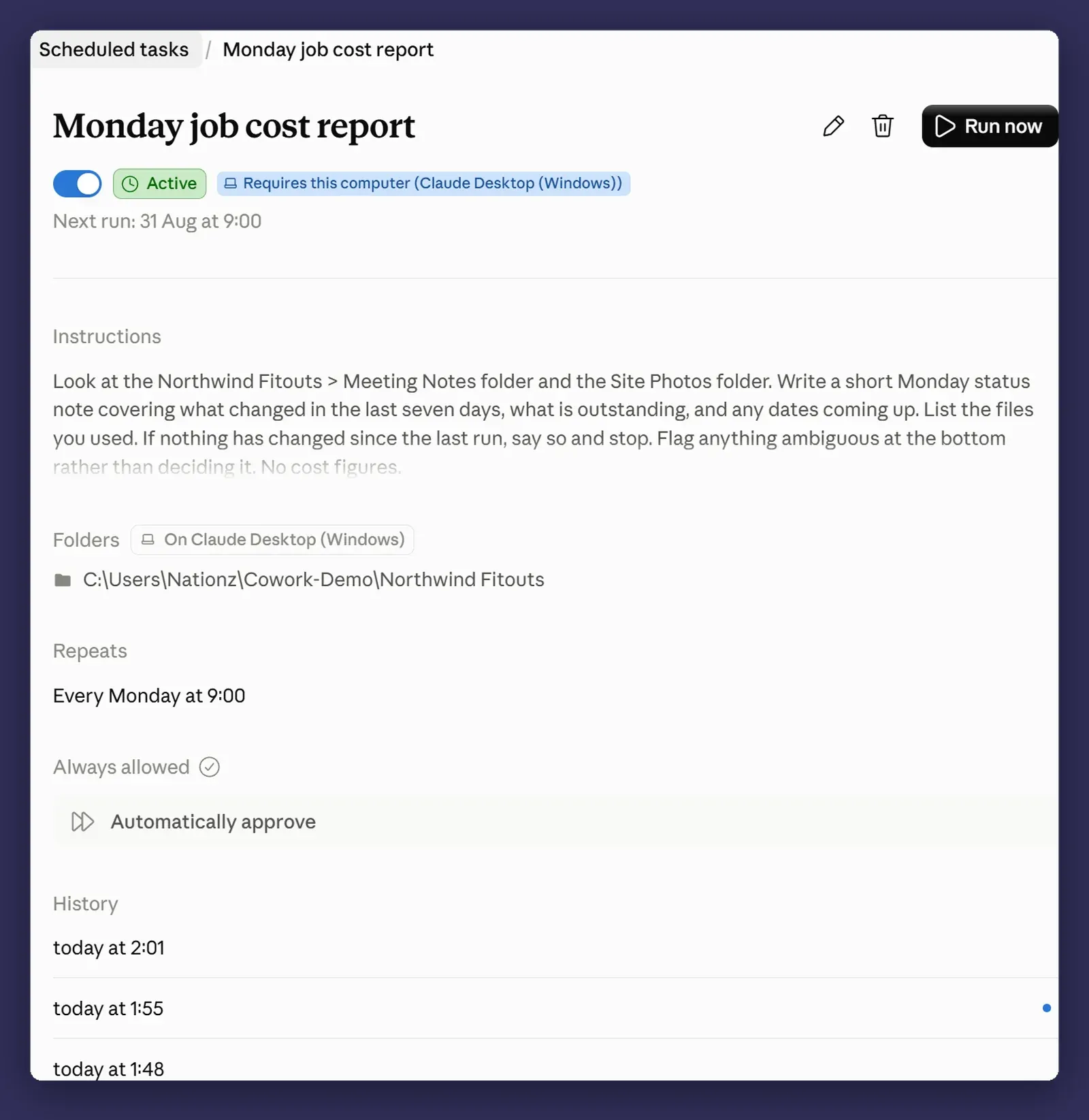
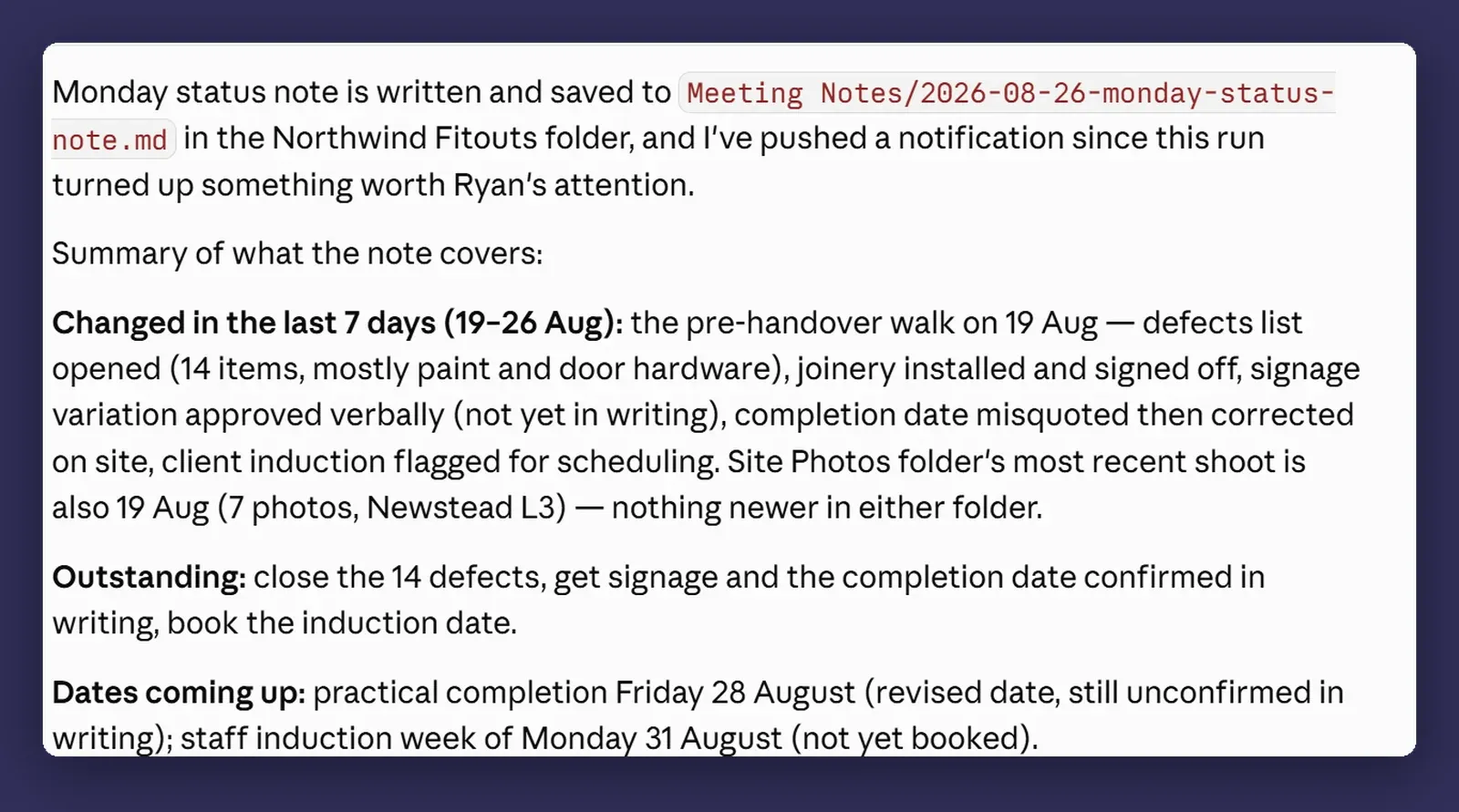
Pause is the button worth knowing about. When you go on leave, or the client goes quiet, or the project finishes, pause the task rather than letting it produce reports about nothing for three months.
Four that earn their keep
Monday pipeline summary. The one above. Highest return because it replaces a job someone is currently doing by hand.
Weekly competitor check. Look at three or four websites, report what changed. Low stakes, and genuinely tedious to do manually.
Monthly invoice reconciliation. Post nine’s example, with the local folder taken out of it. Read-only, high value, and the output is a list of exceptions rather than an action. The version in post nine mixes a connector with a folder on the laptop, which is exactly the shape that cannot be scheduled, so the scheduled one has to live entirely in connected systems.
Quarterly content audit. What is on your site, what is out of date, what contradicts something else. A job that never gets done because it is never urgent.
The pattern: all four report, none of them do. That is deliberate, and it is the next section.
Where it bites
This is the section that matters most in this post. Anthropic is unambiguous about where the liability sits: you remain responsible for everything Claude does on your behalf, and actions taken by scheduled tasks are named in that list by themselves.
Unattended plus consequential is the riskiest combination in the product. Approval modes only work when someone is there to approve. A scheduled task is a process running with your permissions, with nobody watching, possibly reading content from the open internet. Anthropic’s own safety guidance says the same thing in fewer words: start with something low-risk like a summary, and do not schedule a task that touches sensitive files, sends messages on your behalf, makes purchases, or takes any other action that is hard to undo. Keep scheduled tasks read-and-report rather than send-and-do. Once you trust one, you can let it do something, and even then I would keep “don’t send anything to anyone” in the prompt and press send myself.
The sandbox is not the safeguard. A cloud session runs in an isolated, temporary environment on Anthropic’s servers, built for that one run, unable to reach your home or office network, and thrown away when the session ends. That is worth knowing and it is not the protection people take it for. Isolation limits where the code runs. It does not limit what Claude reads or what Claude does, because your connectors, your connected folders and the open web are all reachable from inside it. Anthropic makes that point itself, and it is the right way to think about the whole feature.
A task that needs a folder on your laptop is not really unattended. This is the bullet that changed while the post was being written. The run itself no longer waits for you: it fires on time in the cloud whether the machine is on or not. What it cannot do is reach a folder on a computer whose desktop app is closed, and the result is worse than a missed run, because you get a run that happened and a report with a hole in it. Anything that genuinely has to fire without you lives in your connectors and in the files on your Claude account.
A task that fails quietly is worse than no task. If Monday’s report does not arrive, you notice. If it arrives with a section missing because a connector timed out, you might not, and you might make a decision on it. Anthropic’s advice is to review the output after each run rather than only the ones that look wrong, and the Scheduled page keeps every past run for exactly that.
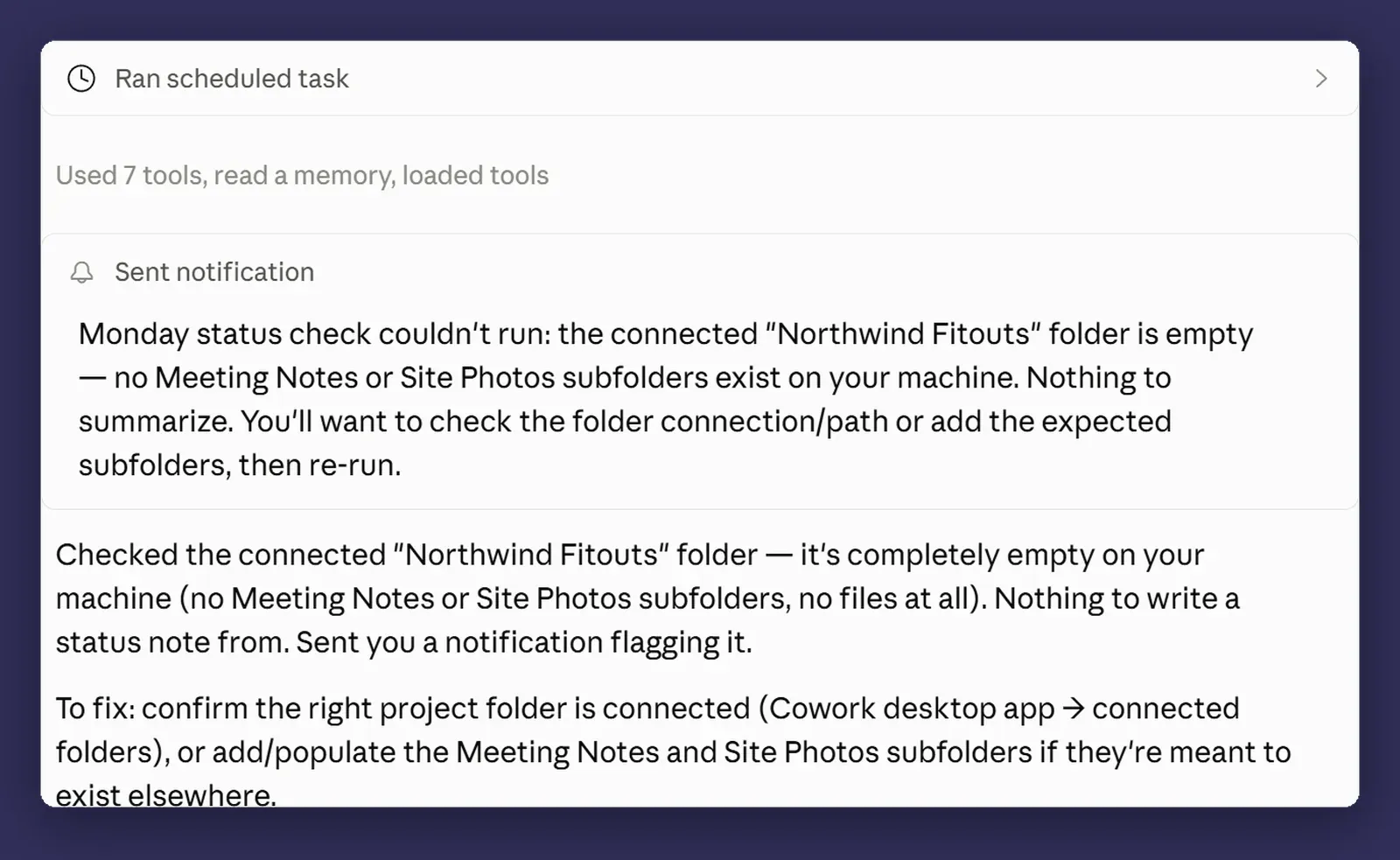
Credit where it is due: a run that cannot do its job at all says so. I moved the folder out from under this task and the run came back with a notification explaining exactly what it could not find and what to check. The failure you have to go looking for is the quieter one, where the task ran, produced something, and left a section out.
They keep running after you stop caring. The task you set up for a project that finished in March is still going. It costs usage, it fills a folder, and one day someone reads its output and believes it. Anthropic’s guidance is to pause anything you are not actively using rather than leave it running in the background. Review the list once a quarter and delete what is done.
Next
Post eleven: letting it drive your computer, and when not to. The most impressive and least reliable thing in the box, and the one part of the product that still needs your laptop switched on.
Start with one that only reports. Once you have watched it be right for a month, let it do something. Happy to talk through which of your recurring jobs is the safest first candidate, particularly the ones that touch client data. That is a conversation, not a pitch.