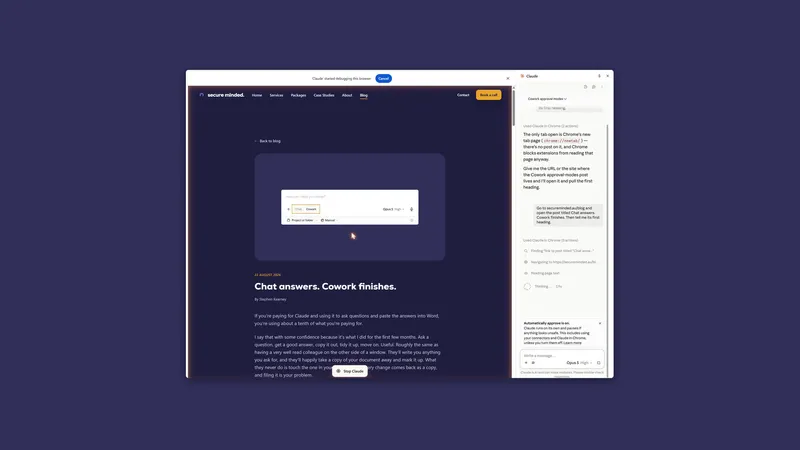
Letting it drive your computer, and when not to
By Stephen Kearney
Watching Claude use your mouse is unsettling for about ninety seconds. Then it is just slow.
The pointer moves on its own, clicks a thing, waits, scrolls, clicks another thing. The first time, you sit forward. The fourth time, you check your email on your phone while it works, which tells you most of what you need to know about where this technology currently sits.
This is the eleventh post in a series on getting actual work out of Claude. Post one has the setup if you are starting here, and post ten covers scheduled tasks, which is the other place in the product where Claude works without you watching.
Three ways in, and Claude tries them in order
People talk about “browser use” and “computer use” as one thing. Anthropic documents them as two rungs of a ladder, with a third above both, and the order is the useful part.
Connectors first. If there is a connector for the system, Claude uses it. Fastest and most reliable, and it was the whole of post nine.
Then a browser. Claude opens the site and clicks, types and fills forms the way a person would. There are now two browsers that can do this: the one built into the Claude desktop app, which opens in a panel beside your task, and your own Chrome through the Claude in Chrome extension. Permissions are granted per website, and the same list covers both.
Then your screen. Computer use. Claude sees the whole screen and drives the mouse and keyboard across whatever is on it. Permissions are granted per application.
Anthropic’s own reason for the order is worth quoting, because it is the argument this post keeps making: pulling messages through your Slack connection takes seconds, and navigating Slack through your screen takes much longer and is more error-prone.
Which browser you get is decided for you and then left to you. If you already use Claude in Chrome, it stays your default. If you do not have the extension, you get the built-in one. There is a Preferred browser setting under Settings, Cowork, if you want to change it.
Start with the browser. Most of what you want is there.
Browser use, and per-site permission
The permission model is the good part.
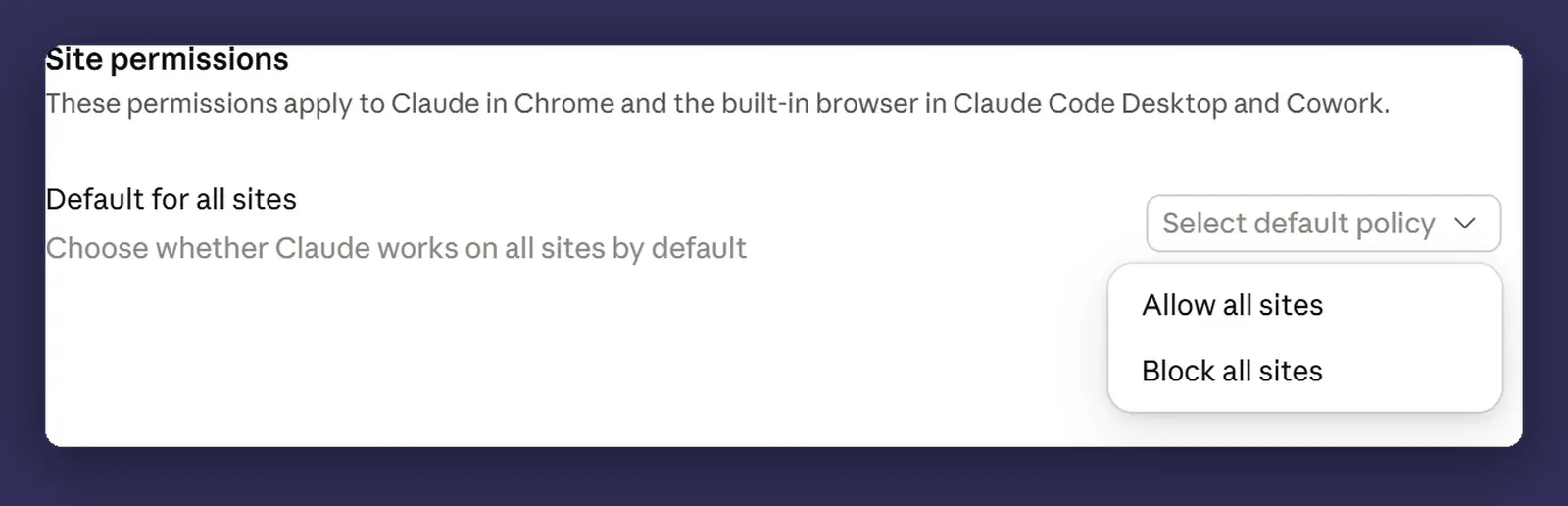
Read the line under the heading: these permissions apply to Claude in Chrome and to the built-in browser in Cowork and Claude Code Desktop. One list, both browsers, one decision.
Out of the box there is no default at all, which means it asks you site by site. The only two things you can set globally are “allow all sites” and “block all sites”, and they sit in a dropdown you have to go and find. Granting one site is a small decision. Granting everything is not, and the interface keeps them apart deliberately.
When Claude does reach a site that needs approval, you get three choices: allow the single action, always allow actions on this site, or decline. Even on always allow, it still stops and asks before downloading a file, entering sensitive information into a page, or granting an authorisation. Notice which of the three you are agreeing to.
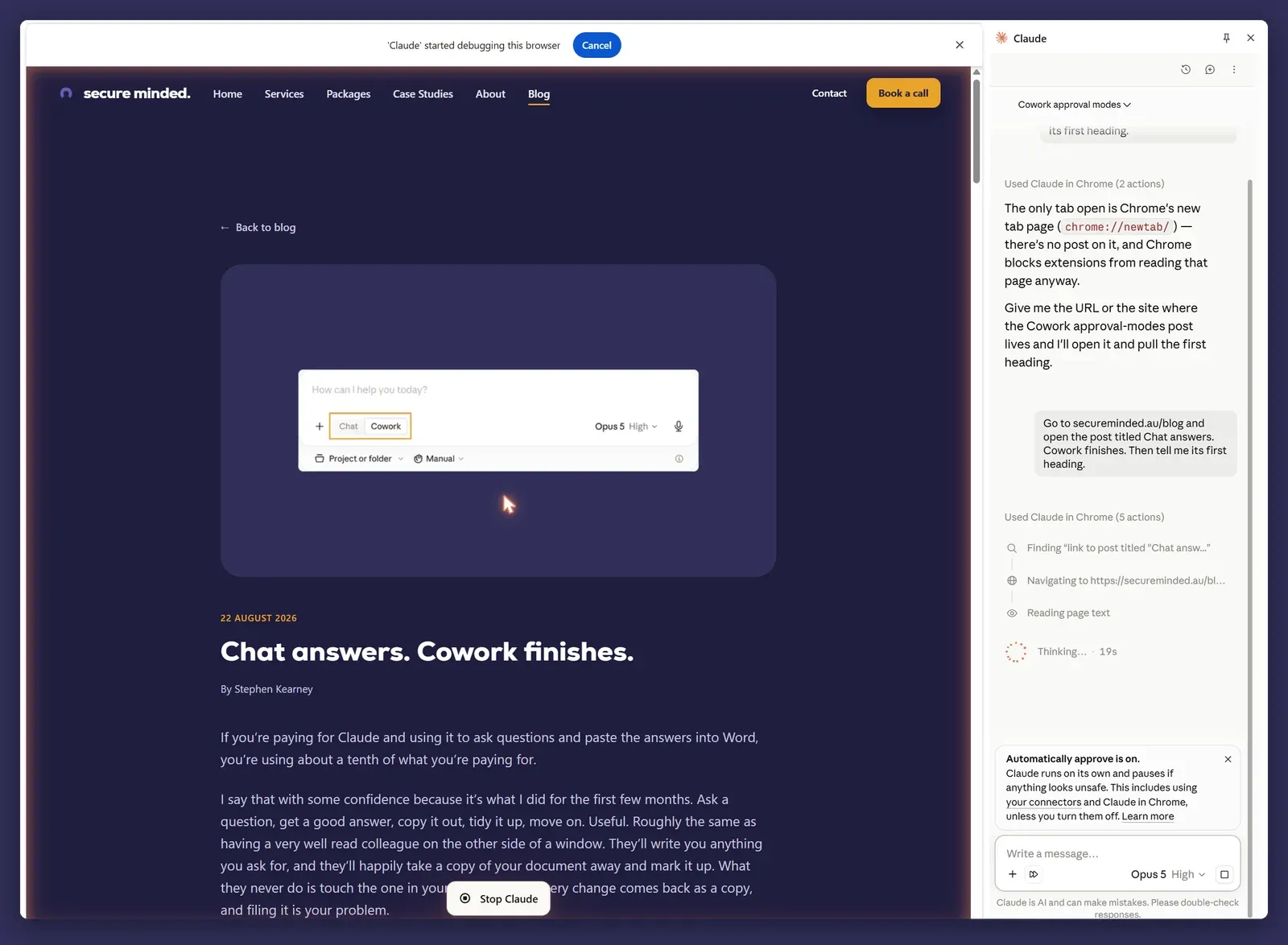
Three things are on screen the whole time it is working, and they are the reason this feels different from watching a macro run. Chrome puts a banner across the top reading “‘Claude’ started debugging this browser”, with a cancel button in it. That wording is Chrome’s, not Claude’s: controlling a browser is done through Chrome’s debugger permission, and Chrome insists on telling you when an extension takes it. The panel lists what it is doing in words you can read: finding the link, navigating, reading the page. And a Stop Claude button follows the bottom of the window.
The panel in that shot also says “Automatically approve is on”, which is the default for the side panel now. That is the middle of the three modes from post three: Claude keeps working, screens each action for safety before it runs, and pauses to ask when something needs you. It is also the mode that consumes the most of your usage limit, because the screening is itself work.
Watch the step list for the first few runs. It is the fastest way to work out whether it has understood the page or is about to click the wrong thing and wonder why nothing happened.
If you are on a Team or Enterprise plan, two things are worth knowing before anyone in your business turns this on. Admins can set site allowlists and blocklists that override whatever an individual user permits. And the extension is on by default on Team plans, while on Enterprise it was off by default and switched to on by default on 10 September 2026 unless it had already been disabled. Claude in Chrome is also not available to organisations covered by HIPAA.
It can learn by watching, but probably not in your panel
There is a record-a-workflow mode. You record the steps yourself and Claude learns to repeat them, which is exactly the feature people assume exists.
What matters is where it is not. Recording lives in the classic side panel only. On Max and Team plans, on Pro as the rollout reaches you, and on Enterprise where an admin has enabled it, the side panel runs as a Cowork session instead, and recording is not available there. So the feature is real and the panel most people are being moved to does not have it.
What both have is shortcuts. Type a slash in the panel and you get a list of saved instructions, the same list your skills appear in from post eight. A shortcut is the path written down rather than demonstrated.
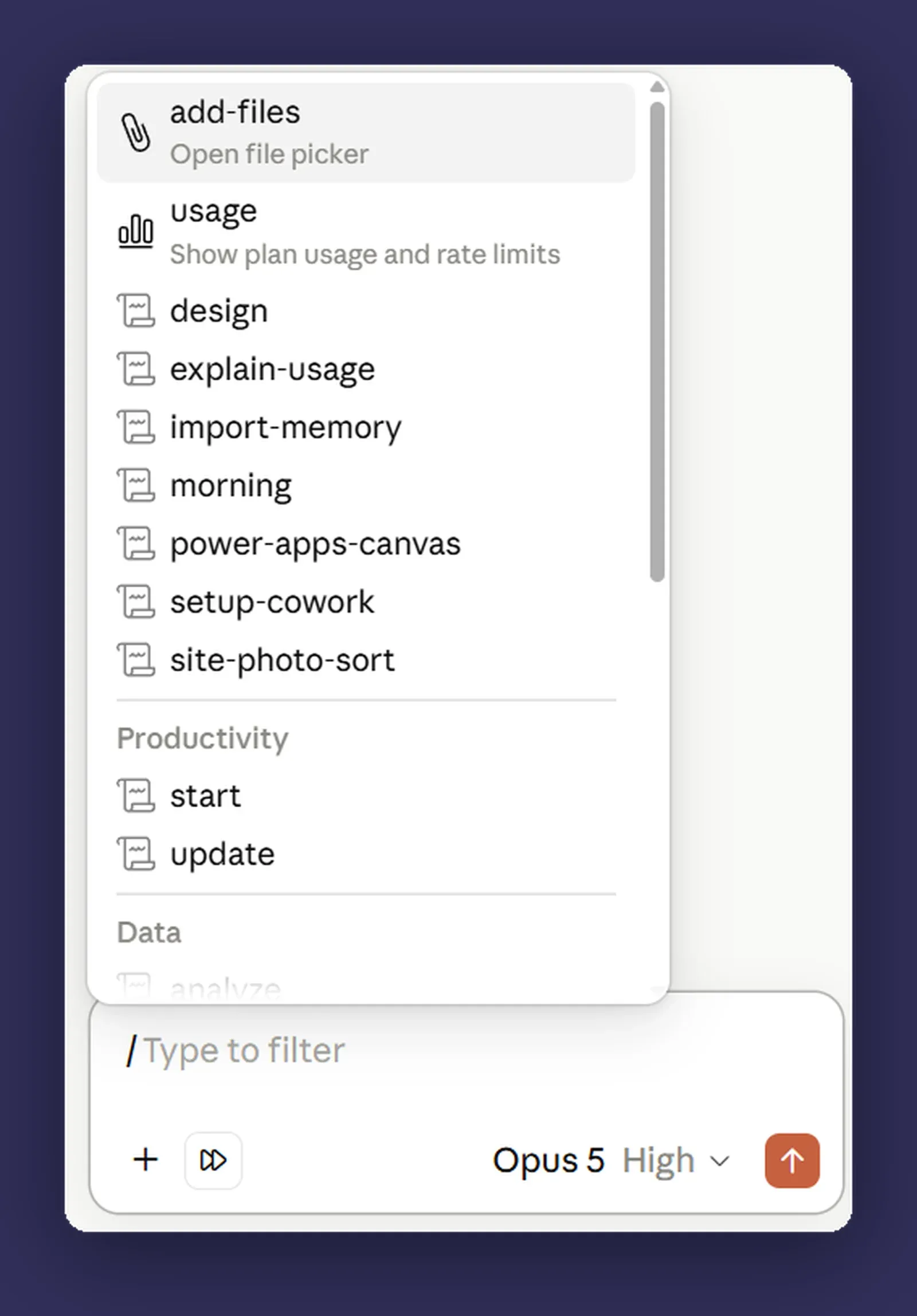
This is the difference between browser use as a party trick and browser use as something you would actually rely on. Left to work out a supplier portal by itself, it will find its way there eventually, usually. Given a shortcut that names the steps, it goes the same way every time, which is what you want from anything repeated.
So the work is the same work as post eight. Do the job once with Claude following your instructions rather than your mouse, get it right, then ask it to save that as a shortcut you can call by name. Judging browser use on unassisted navigation is judging it at its worst.
Shortcuts can also be put on a timer. The extension has a clock icon that schedules a saved shortcut daily, weekly, monthly or annually, which is post ten’s idea pointed at a browser instead of a folder.
Where this genuinely pays
Three shapes, and they have something in common.
Legacy systems with no API. The twenty year old system that runs a critical part of the business and has no integration story and never will. It has a screen, and now that is enough.
Supplier and government portals. The ones where you log in, click through four screens, enter the same reference number three times and download a PDF. Nobody is ever going to build an integration for these, because the portal owner has no reason to.
Forms that eat an hour a week. Not because the form is hard, but because it is long and boring and someone has to do it.
The common thread: no other way in. That is the test, and it is the same test Anthropic applies inside the product. If a connector exists, use the connector. If a script or a Power Automate flow could do it, do that instead, because both are faster and neither of them misreads a screen. Driving the screen is the option for when there is no option.
Computer use, and the permission per app
Two facts before the settings, because between them they decide whether this section is about today or about next year.
It is in beta. And it is on Pro and Max plans only, in the desktop app on Windows and macOS. Team and Enterprise plans do not have access to it at the time of writing. So if your business is on a Team or Enterprise plan, the browser above is the whole story for now, and this is the part to have an opinion about before it arrives.
It ships turned off, which is the right default. Turning it on is one switch, under Settings, General, and the switch underneath it is the one to spend a minute on.
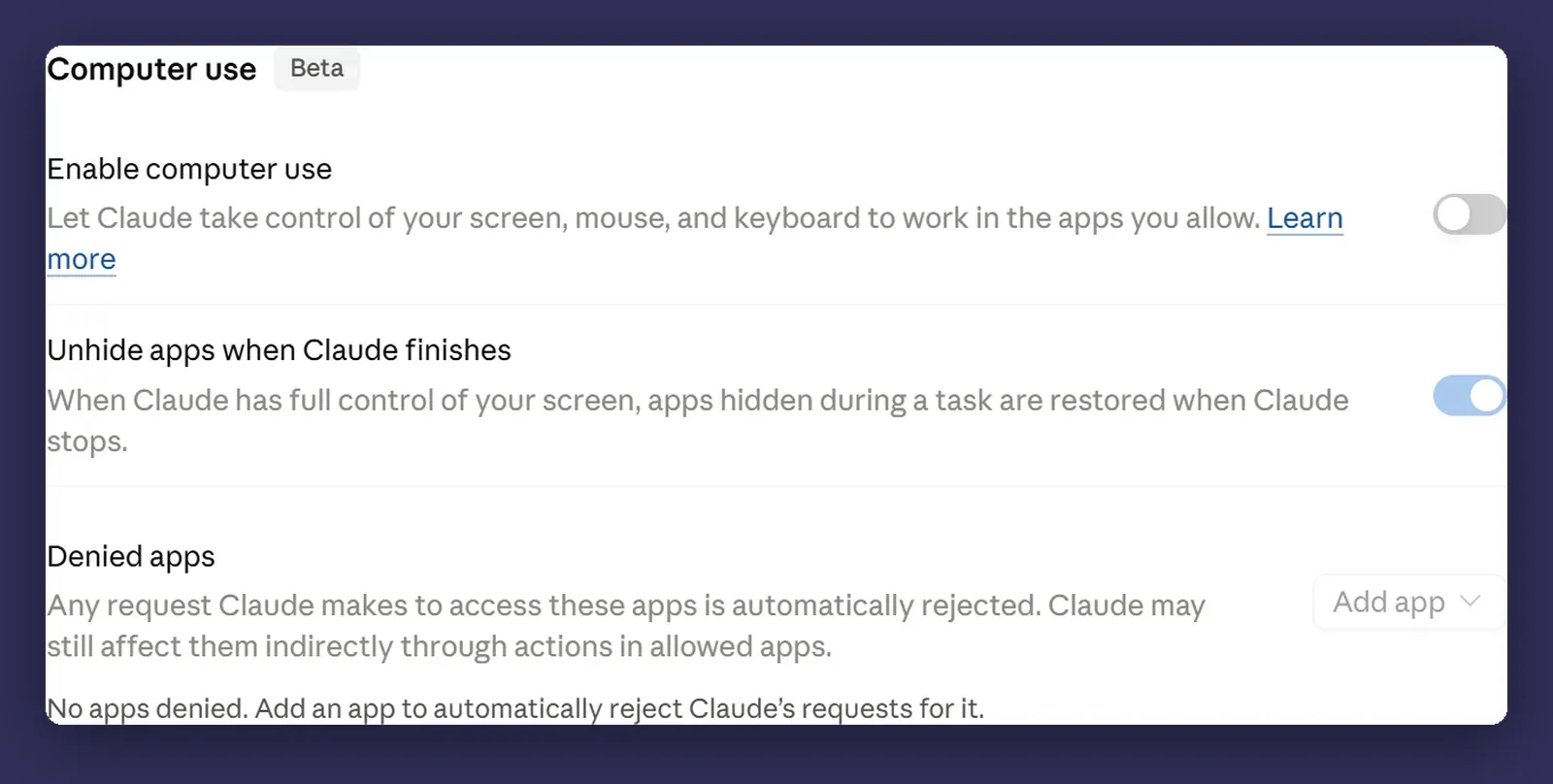
The same logic as everything else in this series: grant the narrowest thing that does the job. Claude asks before it touches each application and you have to approve it, and some categories are blocked before you get a say, including investment and trading platforms and cryptocurrency. Everything else is yours to decide, and Anthropic’s own recommendation is to keep banking, healthcare and government apps off the list entirely rather than granting them and watching.
Sensitive applications should be blocked outright. Your password manager, anything with client records in it, your practice management system. There is a denied apps list for exactly this, and anything on it has Claude’s requests rejected automatically.
Read the wording on that list properly, because it is honest about its own limits: Claude may still affect a denied application indirectly through actions in an allowed one. Anthropic gives the example itself. Clicking a link in your email app can open that link in Chrome even when Chrome was never granted, because the block stops Claude seeing the window and does not stop the link opening. A blocked app is not a sealed app.
Blocking is a setting, not a habit. Habits fail at 5pm on a Friday.
One kinder detail on Mac. On macOS 15 or later Claude works in background windows by default, so it does not take your pointer and keyboard and you can carry on working while it runs. It asks before taking the full screen. If you want the old behaviour, Settings, General has a Full control option.
The recursion, briefly
Computer use can drive the Claude app itself, which means you could in principle ask Cowork to take the screenshots of Claude for a blog post about Cowork.
I tried it, for this series. It works, and it is slower and messier than pressing Win+Shift+S. Worth doing once for the novelty. The screenshots in these posts are all manual.
Which is the useful lesson in miniature: it can do it, and that is not the same as it being the right way to do it.
Where it bites
The longest “where it bites” in the series, because this is the least reliable thing in the box and I would rather you went in expecting that.
It is slow. Minutes, for something you would do in seconds. Fine for a job you are not sitting through. Not fine as a replacement for your own hands on a task you do while thinking about something else.
It misreads screens. It is looking at pixels and inferring meaning, which works until two buttons look similar, or a modal appears, or something loads slower than expected. It will occasionally do something confidently wrong and carry on. Anthropic’s own framing is that complex multi-step workflows sometimes need a second try.
It is fragile against change. Any interface update can break a process that worked last week, and it breaks without warning. A recorded or written path is a path through a specific version of a specific screen. Portals get redesigned.
It sees whatever is on the screen. The way it works is by taking screenshots and reading them, so anything visible is something it has seen, including the window behind the one you meant and the document you left open on the other monitor. Those screenshots become part of the conversation. Close what should not be in it before you start.
Your computer has to be awake and the app open. This is the opposite of post ten. A scheduled task runs in the cloud with your laptop shut; anything that touches your screen needs the machine on and Claude Desktop running, which rules out most of what people first imagine using it for.
It is the wrong tool more often than it is the right one. Most jobs people reach for computer use on would be better served by a connector, a script, or a Power Automate flow. The demo is impressive enough that it makes people skip that question. Ask it.
Next
Post twelve, the last one: plugins, and rolling this out past yourself. What to do when you have become the person in the office who is good at AI and would like to stop being the only one.
If you have a supplier portal that eats an hour a week, that is the one to test this on. Low stakes, clear payback, and you will learn quickly whether it suits your particular screens. Happy to look at whether a portal job is a computer use job or actually a connector job in disguise, which it often is. That is a conversation, not a pitch.